Nanoloop 1.2
manual
Hardware Requirements
Generally, Nanoloop runs on all GB types. Though there are no color features, it also works with GB color and GB advance. There are certain differences in sound quality: GB color and GB light produce various kinds of noise while GB pocket is more quiet. For it's higher base voltage, GB classic is louder than GB color/pocket and therefore it has a much better bass sound and the lowest noise level of all models. So the good old grey one is the recommended platform
Nanoloop sounds best when plugged into TAPE-in of a normal home-hifisystem. Sometimes, sound level is a little low for AUX, so in many setups Nanoloop is the lowest part. There is not much space for equalizing then and on some (club-) systems Nanoloop sounds much rougher than on others (home-systems). So it's good to have a preamp and / or an equalizer.
General Concept
Nanoloop is a step-sequencer. This means that a loop of 16 steps is repeated continuously while each step's parameters can be edited separately. A matrix of 4 * 4 squares represents the steps and within every square one or two points or little rectangles can be moved around to adjust the step's parameters.
The resulting patterns can be stored in file-slots for each instrument separately. After the save-space is filled with patterns, one can start playing around DJ-like with thousands of possible loop-recombinations.
Finally loops can be arranged as a song structure with a simple 3-track-editor.
The whole concept is optimized for the needs of live electronic music production in a classic "techno" style. Rhythm and synthesis parameters can be edited quickly while the loop is running constantly, all manipulations are performed real-time, there is no "rendering time".
Pitch is only one of the synth parameters and adjustable semitone-wise without any musical scale assistance, so there may be better editors for plain harmonic melodies.
Nanoloop is not sample based, but gives full access to the built-in features of the GB's sound chips (like the various noise-"colors") plus software-synthesis. The sound chips are analogue-like oscillators with digital control registers for volume, pitch, etc. The softsynth is based on the writable hardware 4-bit wavetable and uses the possibility of quick frequency changes for a primitive FM. So there is no digital distortion by sample rate or bit depth except for the wavetable. The contained wave form is a sample of 32 bytes with 4 bit depth and it's sampling frequency depends on pitch. On very low pitch this results in crispy "digital" sound while a sine wave for example sounds rather smooth on higher pitch.
Usage
After the Game Boy startup with the Nintendo-logo, the “nanoloop” logo appears on screen. To start the program, press any key. Then a short copyright message and an animated wave form fill the screen for a few seconds.
After that you’ll see the 4 * 4 sequencer matrix and the MAIN MENU.
The menu consists of an upper and a lower part which can be switched by pressing SELECT. The upper part provides general and global functions while through the lower part one can choose which sound parameter to edit in the stepsequencer.
UP / DOWN changes the instrument to edit, displayed as character S, R or N in the lower left corner:
S stands for software-synthesis including wavetable and frequency modulation.
R represents two bundled, detuneable rectangular wave forms
N means "noise"-instrument and provides filter-like effects.SELECT always returns to the main menu from any part of the program.
Lower Menu / Sequencer

In the lower menu you can select an instrument (UP / DOWN) and a parameter (LEFT / RIGHT) for editing in the sequencer. Press A to enter the sequencer matrix and SELECT to return to the menu.
Within the matrix you can move the cursor from step to step with the joypad. Except on pitch envelope and panning, events can be activated with A. To edit a step's parameter, use A + JOYPAD. B deactivates an event (except on pitch envelope and panning). All parameters remain the same when muted and the event can be reactivated by simply pressing A again.The most important feature for quick work with the sequencer is CUT & PASTE. This function is activated / deactivated with START and shown by an icon in the upper right corner:
On copy mode (except on pitch envelope and panning), B cuts and copies an event with all parameters while A can paste duplicates anywhere. This way you can overwrite events and create a new structure very quickly.
Parameters cannot be changed in this mode because the last copied event will always be pasted again as soon as you press A. So to edit a step, CUT & PASTE must be off (no “c” in upper right corner, toggle with START).On copy mode, muting an event resets it's pitch envelope attack.This may be useful when pitch envelopes influence the sound of previous events with a long decay.
Within the menu, the current instrument can be muted / unmuted without changing the pattern with START. A mute instrument is marked by an X next to the instrument-character:
Example Patterns
Each parameter is illustrated by an example stored in the first patterns of all banks. Some more musical loops are located in the last 4 slots.
See "file" for instructions how to load patterns.
Envelope

A + UP / DOWN : initial volume
A + LEFT / RIGHT : decayThe S-instrument's envelope is generated in a different way than with R and N. It has only 3 steps of volume and especially on short envelopes a little noise between the volume steps soils the tone.
R- and N- envelopes have 16 steps of volume which result in much smoother sound.
When the decay value of R or N exceeds a certain length, the envelope becomes ascending. The longer the decay, the slower volume increases. Unfortunately the initial volume is the start volume and always increases to the (rather loud) maximum. To avoid annoying sounds, place an event in the next step.
The S instrument often sounds less strong than R because by default it's a sine wave and R is the sum of two sounds.
When an N-event's initial volume is zero, a single pulse is played instead of noise.Example: S 1, R 1, N 1, 2 (pulse)
Pitch

A + UP / DOWN : octaves
A + LEFT / RIGHT : semitones
The octave point on the left is resolved in 1/2 octave steps.
S and R only.Example: S 2, R 2
FM, Interval / Pulse Width, "Filter"

S: frequency modulation:
A + UP / DOWN = depth higher / lower
A + LEFT / RIGHT = modulation frequency higher / lowerBecause frequency distribution is not linear but exponential (semitones) any change in depth or frequency may cause a totally different sound. Changes of the basic pitch also modify the sound characteristics. For typical FM-sounds both points should not go to far out of the lower left corner (high frequency, low depth).
Though usage is a little tricky for this parameter, it offers the widest range of possible sound variations.Example: S 3
R: relative pitch of 2 oscillators / pulse width
A + UP / DOWN = pitch of the second oscillator, relative to the first. The first three steps only cause a light detune which results in flange-like wave form overlapping effects. From the fourth step on, detune goes on with semitone steps up to one octave.
A + LEFT / RIGHT = pulse width
Not every move takes effect here, there are only 3 possible settings, mapped over the the whole slider range. A far left position means a small pulse width, center postion a medium pulse width and to the right the wave becomes symmetric (default). Far right positions (beoynd the default) result in a wider pulse width which sounds exactly like the medium width.
Example: R 3
N: filter-like parameters
Via A + UP / DOWN and A + LEFT / RIGHT one can adjust two parameters of the noise generator, called "dividing ratio of frequencies" and "shift clock frequency". Both have similar, filter-like effects. Some combinations may cause only a little bubbling sound or even plain silence, others have more tonal effects.
Example: N 2
Pitch Envelope

A + UP / DOWN : attack, increasing or decreasing
A + LEFT / RIGHT : decayIf there is an event in the step, the envelope is added to the pitch so that the original pitch won't change. B resets attack but doesn't mute the step. If CUT / PASTE is activated, the decay value will be copied.
If pitch envelopes are set in an empty R-pattern, noisy random sounds may appear. To avoid such undesired noise, use CUT within pitch-, envelope- or FM-section to mute R-events.Example: S 4, R 4
Wavetable / Delay

S: wavetable:
A + UP / DOWN = selects a wave form. Wave form 0 is a sine wave, all others can be edited in the wave form editor.
A + LEFT resets wave form to sine wave 0.
A + RIGHT switches to wave form F.All values which are not set to 0 or F can be controlled directly from the menu as global via B + UP / DOWN.
Example: S 5
R,N: echo
A + UP/ DOWN adjusts delay of the second oscillator.
A + LEFT sets it to zero
A + RIGHT sets it to maximum lengthExample: R 5, N 3 (pulse)
Panning

A + LEFT / RIGHT = LEFT / RIGHT channel, B = center
R:
A + UP / DOWN plays first oscillator left / right and second right / left.Example: S 6, R 6, N 4
Upper Menu

File
There are 4 banks with 3 rows of 15 pattern-slots per instrument.
Triangles show the positions of the last loaded or saved patterns. A + UP loads a pattern from cursor position, A + DOWN saves the current pattern. To start a pattern exactly on the first step, you can alternatively load it with B+UP. To move a pattern from one place to another, load it from the old and save it to the new slot.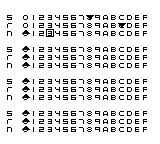
Pattern zero always remains empty.
advanced multi-pattern handling:
The first up to four patterns can be loaded together with START and will
then form one big pattern which's parts are played / displayed alternating. Back in the main menu, the number of the current part is shown in the upper left corner. To edit a certain part, wait till it is played and then enter the pattern editor. The number of the pattern to edit now appears below the playing pattern's number.
A + DOWN on any of the loaded patterns saves the whole structure. To
deactivate this "macro" mode, move the cursor to pattern zero and press
START again.
Song

Here you can arrange the patterns of the bank you have selected in the file section before with a simple 3-track editor. The song has 3 tracks for the 3 instruments S, R, N from top to bottom and is displayed in 4 rows.
To adjust the pattern number of a step, press A + UP / DOWN.
To load and hear that pattern press B + UP.
To use the same pattern in the next / last step, press A + RIGHT / LEFT .
B + RIGHT plays the song from cursor position, playback is shown by an icon in the upper left corner.The whole song structure includes four pages, played after each other.
The current page’s number is displayed in the upper left corner r. To switch to the next page, press START. Changing pages does not change banks! It is not possible to change bank within the song editor, the only way to do that is to move the cursor to an other bank in the file menu.Within the file menu a bank is selected by moving the cursor up and down (it is not necessary to load or save a pattern of that bank): When the cursor is at one of the first 3 rows (s,r,n), bank 1 is selected, and so on.
When leaving the song editor (SELECT), song data are saved automatically in the current bank and a playing song is stopped.
On very high playback speed and depending on the number of events set in a pattern, loading the patterns may take longer than playing them. This results in every pattern being played twice per step or patterns getting mixed up.
Wave Form Editor

There are 16 wave forms in the wavetable. Wave form 0 is always a sine wave, all others can be changed. To select and view a wave form, press LEFT / RIGHT.
Left to the wave form there is a slider to select a partial which is controlled via UP / DOWN. To mix the selected partial into the current wave form press B.
START sets the editor to drawing mode, you can now directly draw the wave form with A + JOYPAD. Press START again to return to the wave form menu.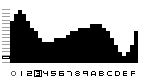
Copy & paste:
A + UP copies the current wave form. After selecting an other wave form with LEFT / RIGHT it can be pasted with A + DOWN.
Wave forms are automatically saved (to bank 0) when leaving the editor (SELECT).Example: S 5
Load this pattern and then play around with the wave form editor.
Pattern-Operations

These functions are executed directly from the menu:
A + UP inverse pattern
A + LEFT / RIGHT shift pattern stepwise
B activates a swing factor, shown by a dotted note icon in the lower right corner.
Speed / Sync

These options are also controlled from the menu:
A + LEFT / RIGHT changes playback speed, displayed as a BPM value. This value is calculated from an internal format, which has a higher resolution than BPM on low speed. On higher speed Nanoloop skips BPM steps because of a lower internal resolution.Values greater than 255 are not shown correctly but work fine up to self-oscillation. Speed is saved automatically and there is only one global speed for all banks.
B sets Nanoloop as Slave and START turns it to master mode again.
MIDI-sync
In a MIDI setup, Nanoloop can only be slave. To start master and slave synchronously, set Nanoloop to slave mode by pressing B and then start the master. In most cases this is all you need to do. To change the sync-time base (1/1, 1/2, etc.) press A + LEFT / RIGHT. Default is 1/8.
On master speed changes, Nanoloop (or the master) may skip single MIDI sync signals. To correct this A + UP / DOWN adds / subtracts sync-steps (1/6 step). Anyway, in most situations it may be much easier to simply stop the master for a second. When not receiving sync signals for a certain period (about one second), Nanoloop flips back to the first step and waits for the master to start.Latency time is about two milliseconds.
Nanoloop-to-Nanoloop
When syncing two Nanoloops via GameLink cable, time base must be reset to 1:1 by pressing A + RIGHT for some seconds first. After that, time base can be stretched again if desired. Once the time base was reset to 1:1, it is no more MIDI-based but Nanolop-to-Nanoloop, there is no way back to MIDI-mode. This is necessary because MIDI-sync signals appear 6 times but Nanoloop's internal sync only once per step.
The rest of the handling is the same as with MIDI.
Problems
Sound
All parameters use the same generic interface, but some have a different range than the graphical representation. Therefore sometimes a fader only moves every second step, like the pitch envelope does. On the other hand there are for example only three possible pulse width values corresponding with 16 slider positions.
Of course the sound hardware has numerous limitations:
Every time playing an S-event, the related sound chip must be switched off and on again to activate the wavetable. This causes a light pulse.Even louder noise appears on panning effects, every channel-switching results in a pulse noise.
Since R-sound is never switched off, it doesnt make pulse noise. But R-pitch-envelopes are calculated and applied to the hardware even on completely empty patterns. So in each loop-round, the pitch value of the “current" (no more existing) event will increase/decrease until it overflows into the next hardware address which restarts sound. To avoid such artifacts, delete all pitch envelopes you don't need.
Pitch envelope and detune may point to undefined values and cause undesired sound.
On menu changes, some graphic parts of the previous menu may remain or parts of the new one may not load. This is because of the higher priority of sound calculation. If there are confusing icons, just switch so an other window and back again to reload the graphics.
When loading a pattern file with B+UP, wait until it is loaded (triangle appears) before you leave the file menu, otherwise the whole screen content may move.
Crashes
There are three possible reasons for crashes: Loose power connections, an empty cart battery or damaged hardware.
If a crash happens while loading or saving data (which is also the case during song playback) the whole bank that was in use can be erased, so it's recommended to be careful with external power or to use batteries. Because on load- and save-process memory is unprotected, the Game Boy shouldn't be turned off during file operation – e.g. leave the song editor (necessay to save the song anyway) before shutdown
If the program restarts after an accidental reset by loose power, restart it again manually before using it.
If a bank is erased, it will be reformatted automatically and filled with demo-patterns on next startup. During formatting process, a cluster of (meaningless) icons remains on screen for a few seconds after startup.While this was a serious problem within version 1.0, the risk of data-loss has been minimized since version 1.1. With the present version it’s almost impossible to scramble memory: Switching off the device at any point and even removing the cartridge during song playback (though still not recommended) seems to be completely save now
Save-data are held in battery-packed SRAM and of course this battery will be empty one day. For a lack of experience we can't guarantee a certain lifetime but it should rest for a couple of years, just like with normal games.
Frequent reformatting on startup without a crash before indicate a weak battery. To exchange it, open the cart, remove the battery carefully and replace it by the same type. A battery change of course means data loss and replacement with demo patterns for all banks.
If the program crashes permanently without reason, shows strange behavior or refuses operation, the circuit is probably damaged. Carts generally are not of the best quality, badly soldered connections may get loose when treated roughly. Some carts don't even survive shipping or break soon after delivery.
If this is the case, please contact support@nanoloop.com for quick replacement.
For questions and comments, please contact
support@nanoloop.com
or visit the online discussion forum at
www.nanoloop.com
(c) 1997-2002
Oliver WittchowNintendo, Game Boy, Game Boy Pocket and Game Boy Color are registered trademarks of Nintendo of America, Inc.
Nintendo of America, Inc. has not recommended, authorized, endorsed, approved of, or licensed Nanoloop.